
Table of Contents
To compress PDF files well, start with what makes them large. A PDF that is 80 MB is rarely 80 MB of words. It is usually photographs at print resolution, a scanned document stored as images, fonts embedded in full, or all three. Understanding which of those is responsible tells you whether compression will help, whether conversion will work, and whether you need a different approach entirely.
In short: To compress a PDF well, start with what makes it large: photographs at print resolution, scanned pages stored as images, embedded fonts, or all three. Make a copy, compress the copy, and keep the original. Then check the result at 100% and 200%, including the smallest text and the most detailed image.
What actually makes a PDF large
Images, at the wrong resolution
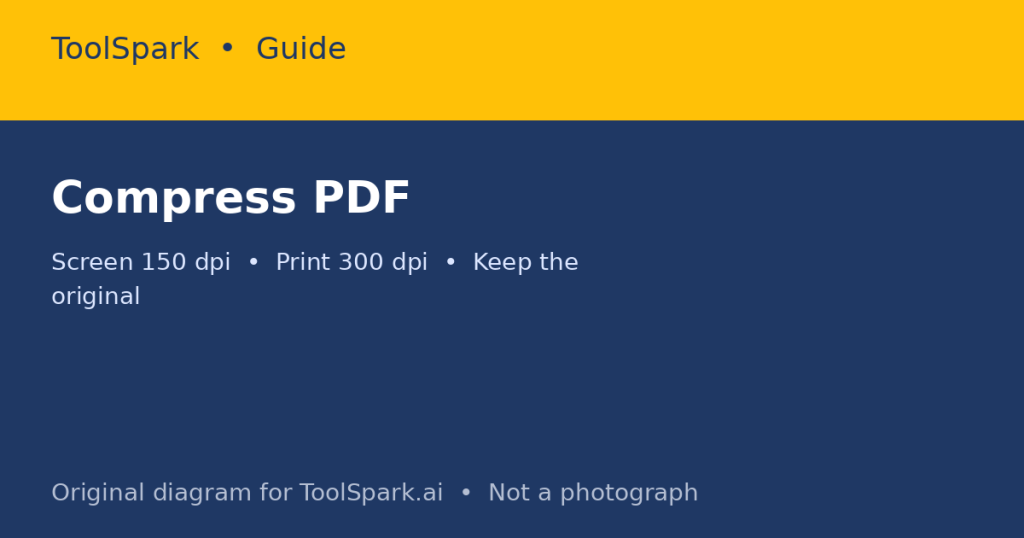
A photograph embedded at 300 dots per inch for a document that will only be read on screen is wasted size. For screen reading, 150 dpi is often enough; for print, 300 dpi is the usual target. Downsampling images to the resolution they will actually be used at is the single largest saving in most PDFs, and it is also the step where quality is lost if you go too far. Keep the original PDF before compressing, so you can re-export if the compressed version looks too soft.
Scanned pages
A scanned page is an image, even if it looks like text. A 50-page scan can easily be tens of megabytes, and it cannot be searched or edited until OCR recognises the characters. If you need searchable text, OCR is not optional; if you only need to share the scan, compression and downsampling are the right tools, and you should not expect a clean Word conversion from it.
Embedded fonts and files
Embedding a full font ensures the document looks the same everywhere, but it adds size. Subsetting a font – embedding only the characters actually used – saves size with no visible difference for most documents. Embedded attachments, videos, and 3D content add size disproportionately and are often better shared separately with a link.
Compressing without ruining the document
- Make a copy. Compress the copy, keep the original.
- Identify the cause: if the PDF is mostly images, image compression will help; if it is mostly text, it will not, and the file may already be small.
- Choose a target use: screen, email, or print. Each has a different acceptable image resolution.
- Compress, then check: open the result, zoom to 100% and 200%, check the smallest text and the most detailed image, and check that tables and footnotes are still legible.
- If text becomes blurry, the compression was too aggressive for that document. Recompress from the original with a gentler setting, or split the document and compress only the image-heavy sections.
A common mistake is to compress a PDF, then convert the compressed PDF to Word and blame the converter for poor quality. The quality was lost at the compression step. Keep the high-quality original for conversion, and compress only the copy you will share.
Converting between formats: what to expect
| Conversion | Usually works well | Often needs cleanup |
|---|---|---|
| Word to PDF | Text, headings, simple tables, images | Complex tracked changes, some fonts on other systems |
| PDF to Word | Simple text documents, headings | Multi-column layouts, complex tables, footnotes, scanned pages |
| PDF to Excel | Clean, single tables with clear grid lines | Merged cells, multi-line cells, tables spanning pages |
| PDF to JPG | One image per page, for sharing or archiving | Text becomes an image and is no longer searchable or editable |
| Image to PDF | Photos and scans into a shareable document | No searchable text without OCR |
After any conversion, check in this order: page count, headings, tables, images, footnotes, and page breaks. A conversion that preserves page count but breaks a table is not a successful conversion for a spreadsheet or a report, even if it looks fine at a glance.
Practical workflow for common jobs
Sharing a large PDF by email
Compress a copy for sharing, keep the original, and if the compressed file is still over the email limit, split it by chapter or section rather than compressing further until it is illegible. A split PDF that is readable is better than a single PDF that is not.
Editing a PDF you received
Convert to Word or Excel from the original, not from a compressed copy, then clean up tables and headings before you start editing content. If the source is scanned, run OCR first and proofread the result – OCR errors in numbers are easy to miss and hard to fix later.
Archiving documents
Keep the original format and a PDF copy. The original preserves editability; the PDF preserves layout. Store both with a clear filename and date, because a file called ‘document-final.pdf’ tells you nothing in two years.
Use the ToolSpark Compress PDF, Merge PDF, Split PDF, and PDF conversion tools for these jobs, but verify the output every time. A tool that processes a file in your browser, without uploading it, has a privacy advantage for sensitive documents – and that advantage only matters if you also check the result before you send it on. See also PDF to Word, PDF to Excel, PDF to JPG, Docx To Pdf, and Pdf To Docx.
Frequently Asked Questions
Why is my PDF so large?
Usually because of high-resolution images, embedded fonts, or scanned pages stored as images. Text alone rarely makes a large PDF.
Does compressing a PDF reduce quality?
It can, if images are downsampled or recompressed aggressively. A good compression keeps text sharp and reduces image resolution only to what the document will actually be displayed or printed at.
Can I convert a scanned PDF to Word?
Only if the scan is processed with OCR (optical character recognition) to recognise the text. Without OCR, a scanned PDF is a picture of text, not editable text, and conversion will produce an image, not a document.
Why do tables break when converting PDF to Excel?
Because PDF stores positioned text, not a spreadsheet grid. A converter must guess the table structure from positions, so complex or merged-cell tables often need manual cleanup after conversion.
Is Word to PDF safer than PDF to Word?
Generally, yes. Word to PDF preserves layout as a fixed document. PDF to Word tries to reverse-engineer an editable layout from a fixed document, which is a harder problem and more likely to need fixes.

Community Reviews & Discussion
Be the first in the community to share a tip, workflow suggestion, or review for this tool!